Perform CI/CD scan using Jenkins and Aqua Security Scanner Jenkins Plugin
TABLE OF CONTENTS
- Overview
- Compatibility with Aqua components
- Prerequisites
- Install the Jenkins
Install Jenkins Aqua Security Scanner Plugin and configure
- Configure the scan job & pipeline to scan image and see the scan report
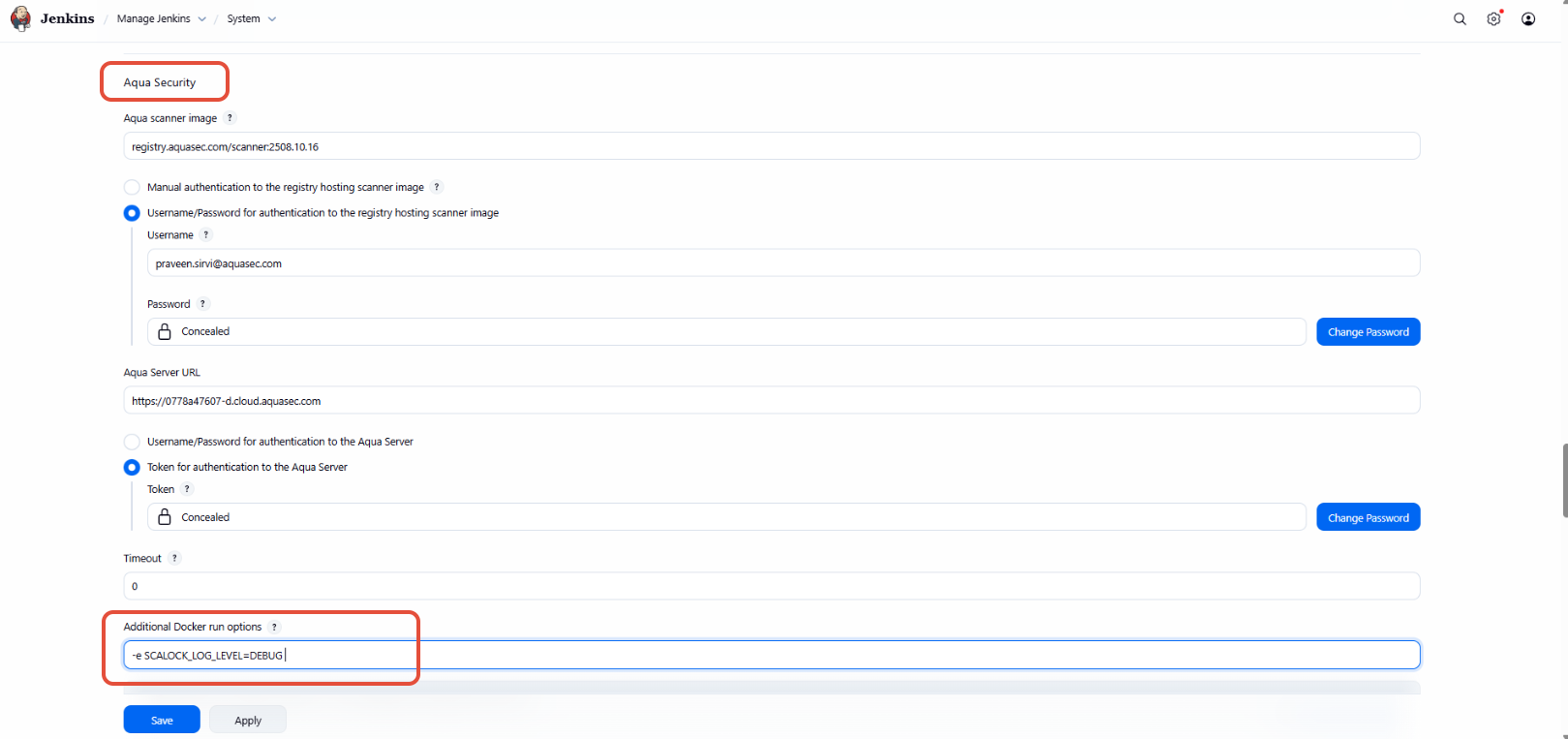
- How to Put Scanner into DEBUG mode
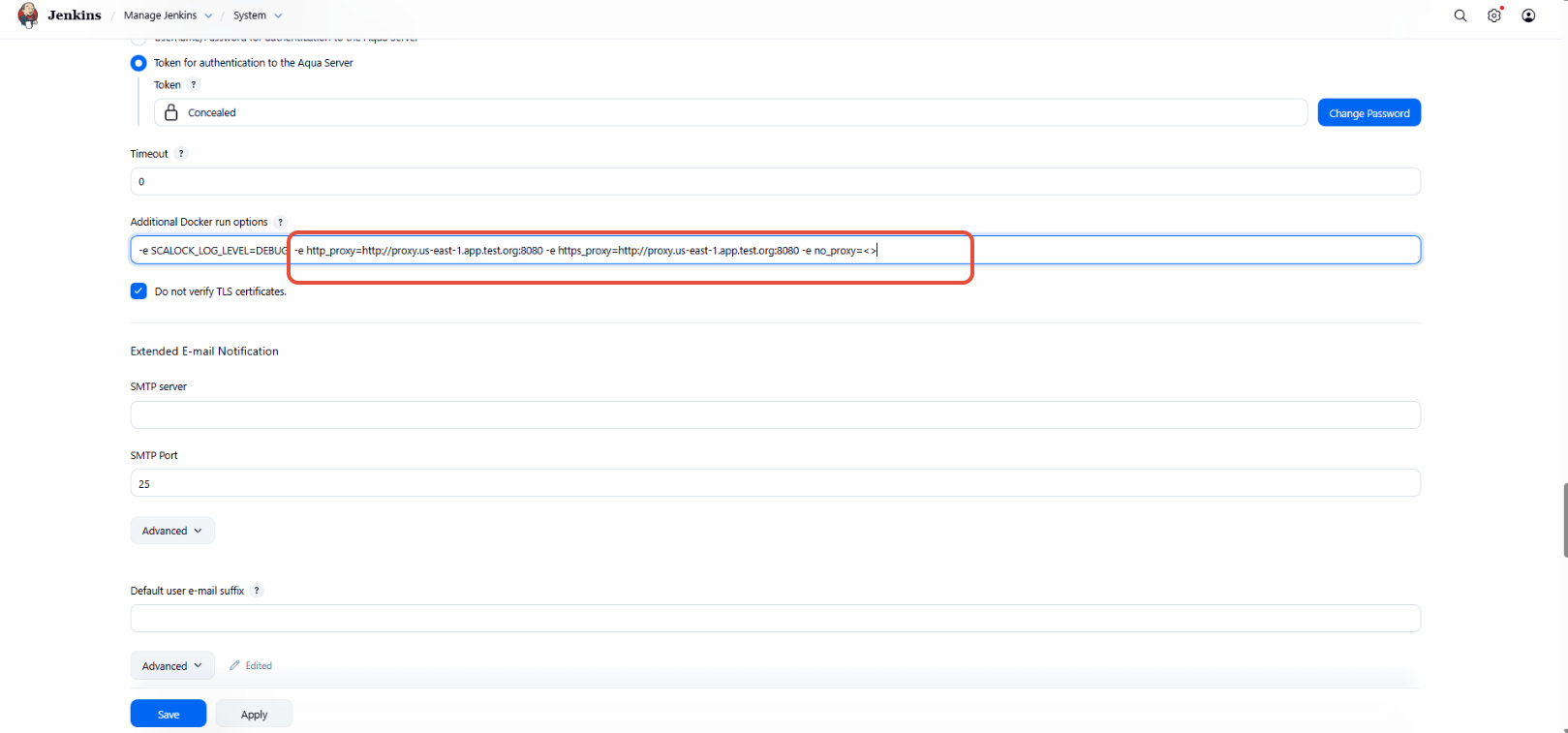
- How to add proxy variables
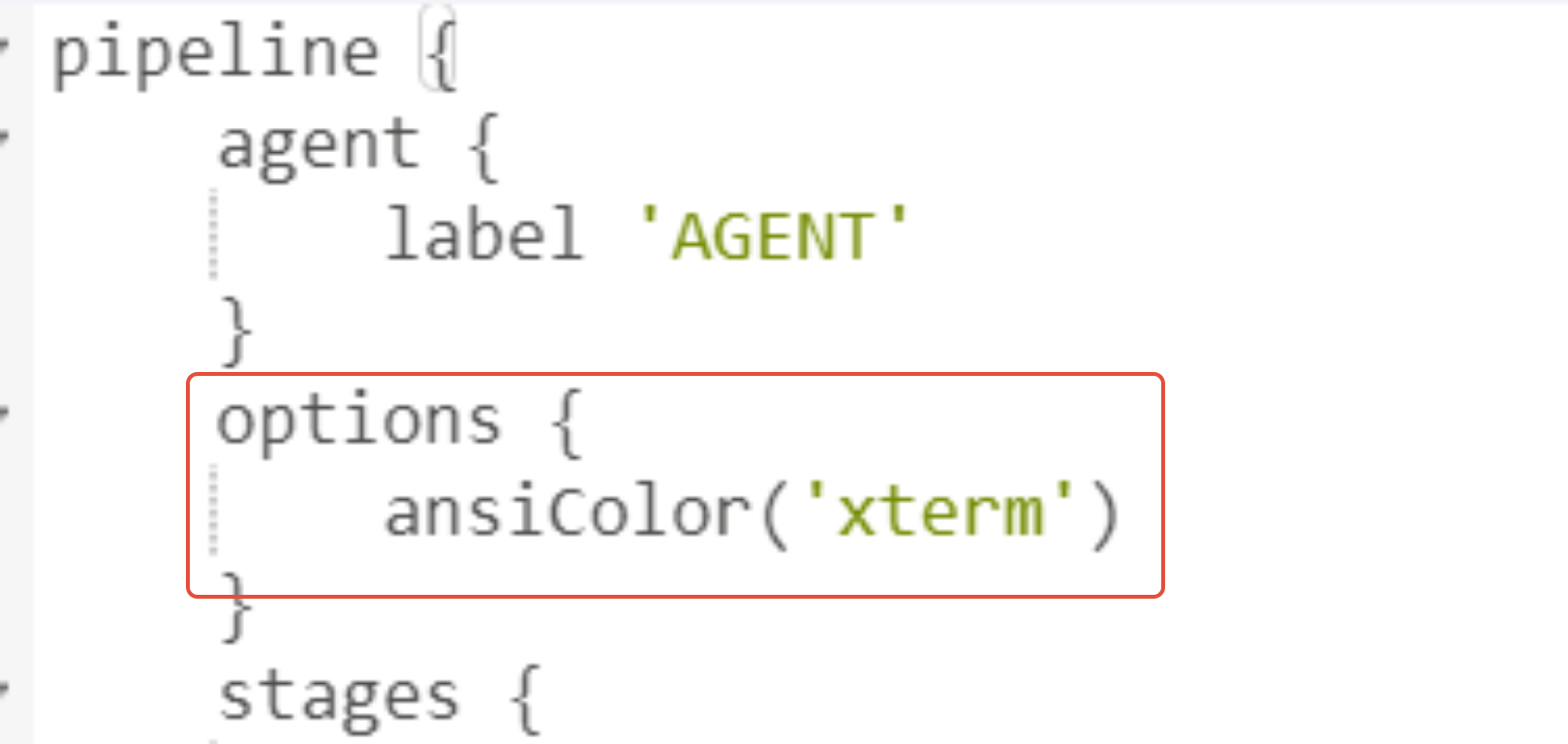
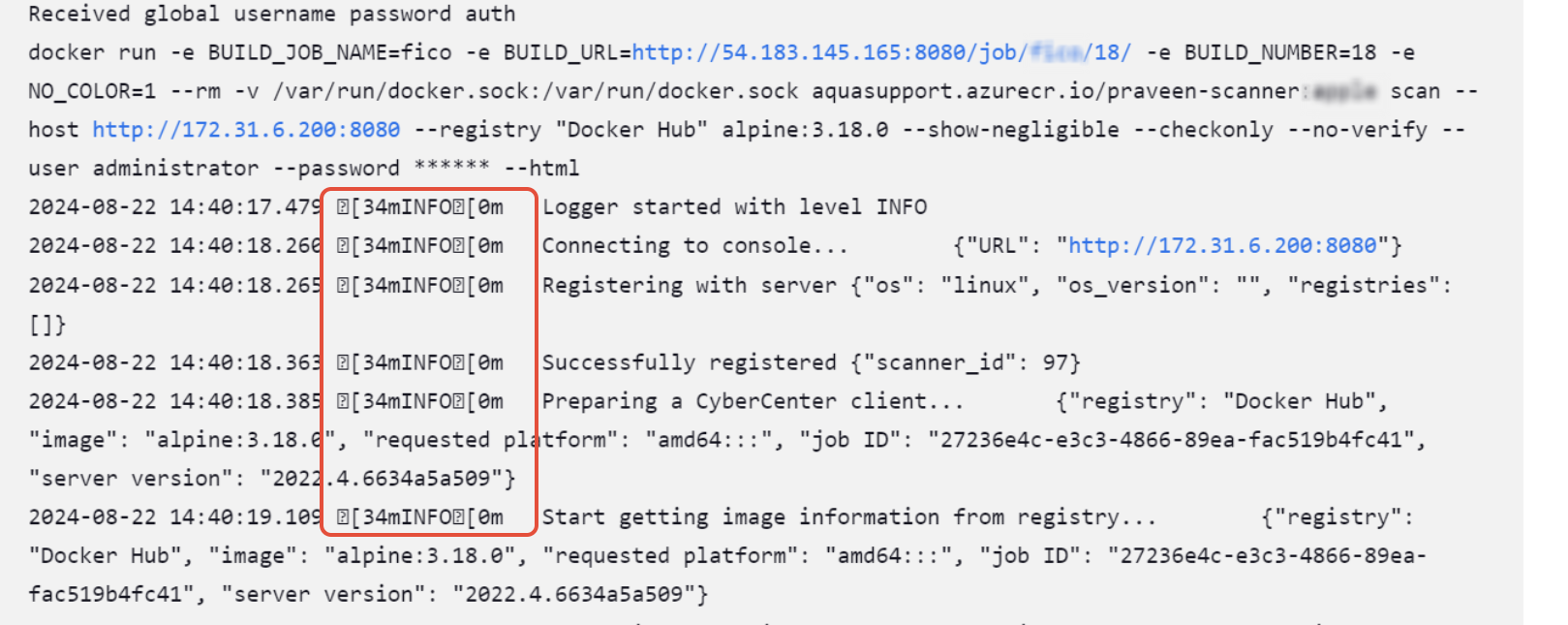
- How to remove ASCII characters in build logs for Jenkins pipeline
Overview
The Aqua Security Scanner Jenkins Plugin integrates seamlessly with Jenkins to enable automated container image scanning as part of your CI/CD pipeline. It helps to detect vulnerabilities, malware, and compliance issues in container images directly within Jenkins jobs.
Once the plugin is installed, you can easily configure a build step to trigger image scans during the build process. The plugin scans the defined image and connect with the Aqua server for the compliance analysis based on the Assurance policy configured and scoped for the image that got scanned.
This guide covers the installation and configuration of the Jenkins Aqua Security Scanner plugin, how to integrate it into your build pipeline, and how to interpret the scan results within the Jenkins interface.
Compatibility with Aqua components
Aqua Security Scanner Jenkins Plugin
- Docker
- Podman
Supported agent pools
When using the Jenkins Aqua Security Scanner Plugin, it's important to configure your Jenkins agents appropriately based on the operating system. The scanner setup differs between Linux and Windows agents.
Linux Agents
For Linux-based Jenkins agents:
Ensure the Aqua Scanner Docker image is available on the agent machine.
If the required scanner image is not already present, it will be automatically pulled from the Docker registry during the scan, assuming your Jenkins environment is properly configured with access to the Aqua registry.
This pull happens during the image scanning process initiated by the plugin, so no manual preloading is necessary.
Windows Agents
For Windows-based Jenkins agents:
If you're using a scanner version later than 4.2.0, the Aqua scanner binary is not embedded in the plugin. Instead, you must manually download the scanner binary and make it available to the Jenkins agent.
A common practice is to host the scanner binary as an artifact (e.g., via a shared storage or internal repository), then download and extract it as part of your Jenkins pipeline using custom script steps.
For example, to use scanner versions like 2022.4, download the corresponding binary from Aqua’s distribution source and configure it as a build step in your pipeline.
If you're using scanner version 4.2.0, the binary is embedded within the plugin, so no separate download or artifact handling is required.
Note: Always ensure the correct version of the scanner is being used to maintain compatibility with your Aqua platform version and image scanning policies.
Prerequisites
- Before you configure the Jenkins plugin, make sure that you have scanner permission assigned by your Aqua admin.
- You should Docker/podman and JAVA installed task before the Aqua's Image Scanning task. This task help scanning Linux images from Aqua, through your specific docker instance.
Install the Jenkins and Aqua Security Scanner Jenkins Plugin
A. Install Jenkins as container
1. Install Docker
Ensure Docker is installed on your system:
docker --versionIf not installed, refer to: https://docs.docker.com/get-docker/
? 2. Pull the Official Jenkins Image:
docker pull jenkins/jenkins:ltsjenkins/jenkins:lts is the stable Long-Term Support version.
? 3. Run Jenkins Container
Create and run the container:
docker run -d \
  --name jenkins \
  -p 8080:8080 -p 50000:50000 \
  -v jenkins_home:/var/jenkins_home \
  jenkins/jenkins:lts
Explanation:
-p 8080:8080: Web UI-p 50000:50000: For connecting Jenkins agents-v jenkins_home:/var/jenkins_home: Persists Jenkins data
You can also mount a local volume instead of using a Docker named volume:
-v /your/local/path:/var/jenkins_home
? 4. Access Jenkins Web UI
Follow Instruction from B 3.1
B. Install Jenkins as Service
Follow the steps below to install Java on Ubuntu:
1. Check if you already have Java installed on your Ubuntu system:
java -versionIf the output states "command 'java' not found", then Java is not installed on the system and you can proceed with the steps below to install it. Otherwise, skip ahead to Step 2.
2. Open a terminal window and update the system package repository index:
sudo apt updateWait for the update to complete. Updating the index refreshes it with the latest program versions available.
3. Install Java with the following command:
sudo apt install openjdk-21-jdk -yWait for the process to complete.
4. Recheck the Java version to verify the installation:
java -version
Here I am using Debian/Ubuntu LTS release
sudo wget -O /etc/apt/keyrings/jenkins-keyring.asc \
  https://pkg.jenkins.io/debian-stable/jenkins.io-2023.key
echo "deb [signed-by=/etc/apt/keyrings/jenkins-keyring.asc]" \
  https://pkg.jenkins.io/debian-stable binary/ | sudo tee \
  /etc/apt/sources.list.d/jenkins.list > /dev/null
sudo apt update
sudo apt install jenkins
Step 3: Set Up Jenkins
Follow the steps below to set up Jenkins and start using it:
1. Open a web browser and navigate to your server's IP address. Use the following syntax:
Use the actual IP address or domain name for the server on which you are using Jenkins. For example, if you run Jenkins locally, enter localhost (127.0.0.1):
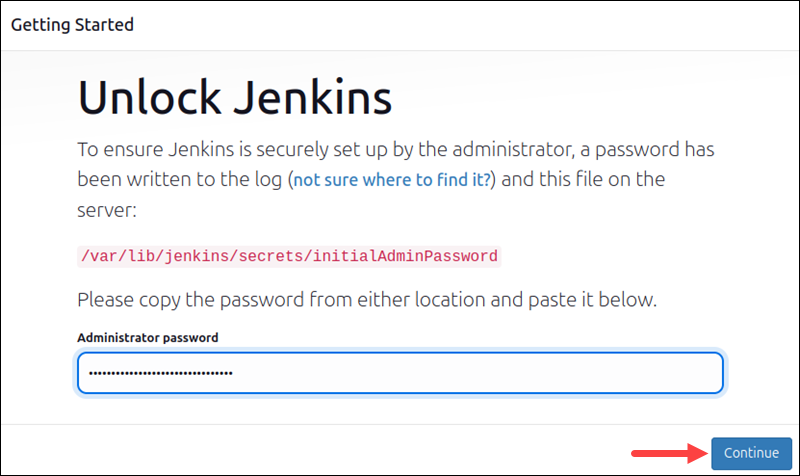
A page opens and prompts you to Unlock Jenkins. Keep the page open and obtain the required administrator password in the next step.
2. Open the terminal and run the following command to get the default Jenkins unlock password:

The system returns an alphanumeric code. Select the code and copy it.
3. Paste the code in the Administrator password field in the Jenkins unlock page and click Continue.
4. The setup prompts to either Install suggested plugins or Select plugins to install. It’s fine to install the suggested plugins.
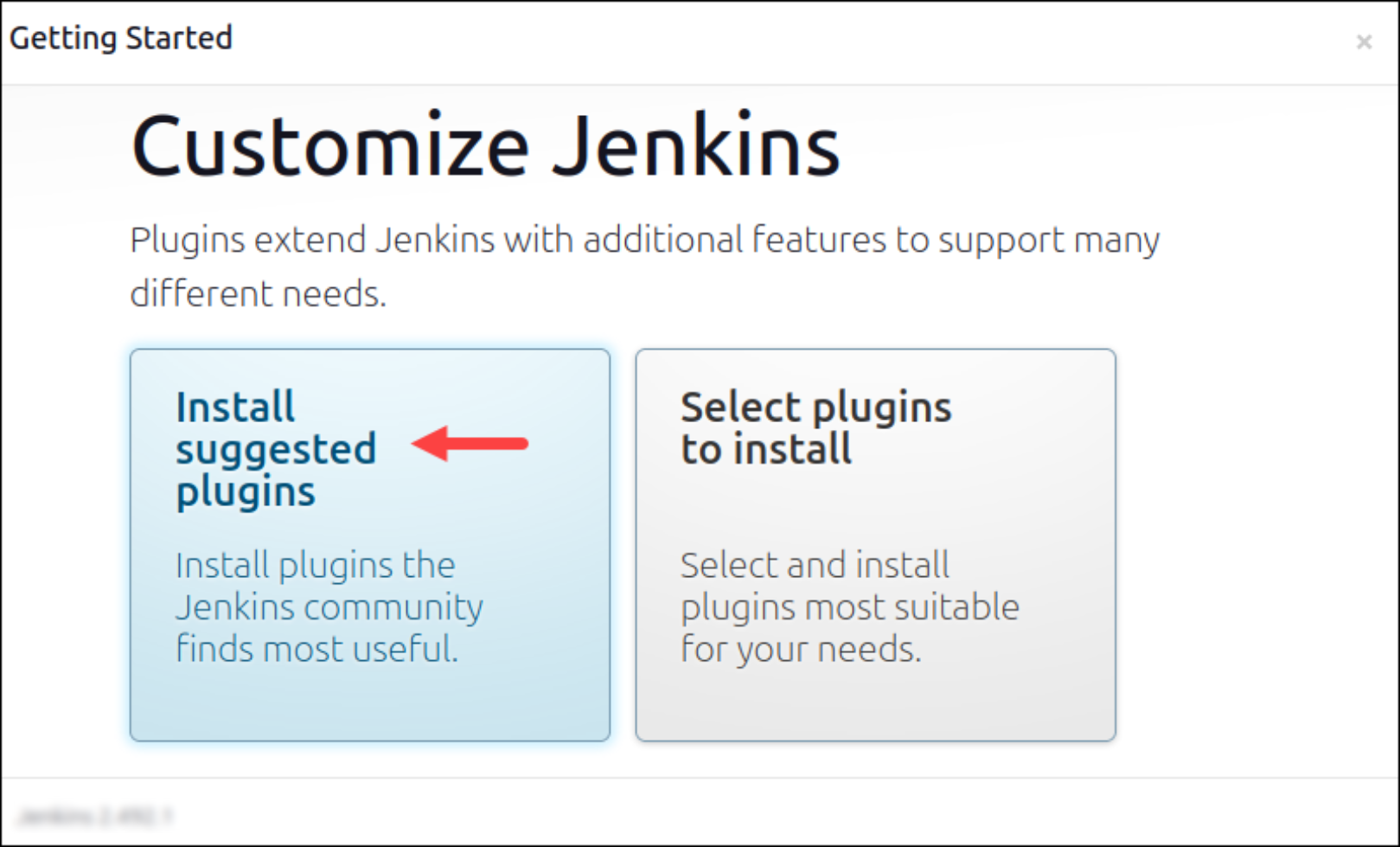
You can always install more plugins later. The system continues the initial Jenkins setup.
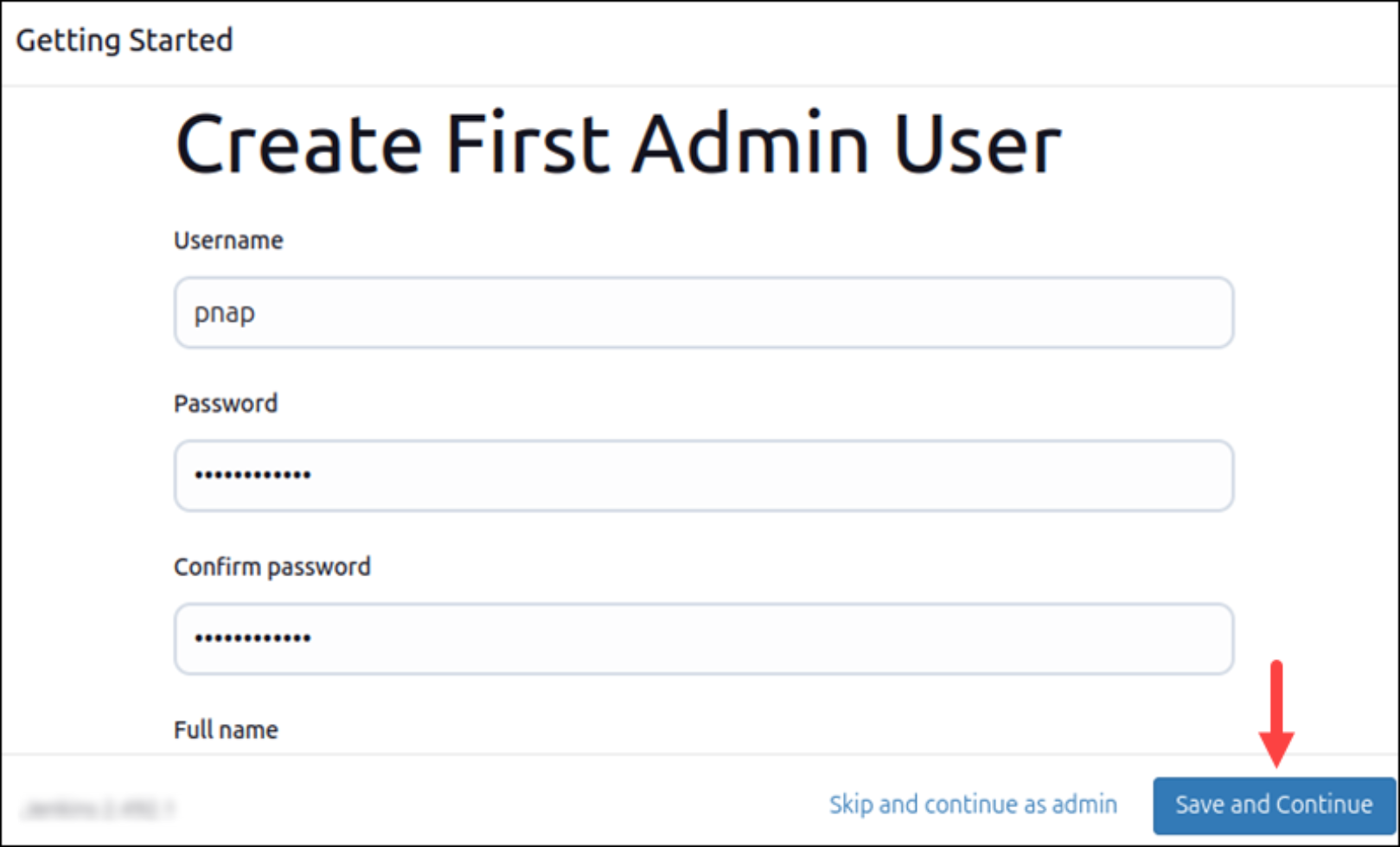
5. In the Create First Admin User step, enter the credentials you want to use for your Jenkins administrator. Then, click Save and Continue.
6. Next, set up the Instance Configuration. This is the preferred network address for this Jenkins installation. Confirm the address you want to use for your server. This is most likely the same address you used to get to this configuration page.
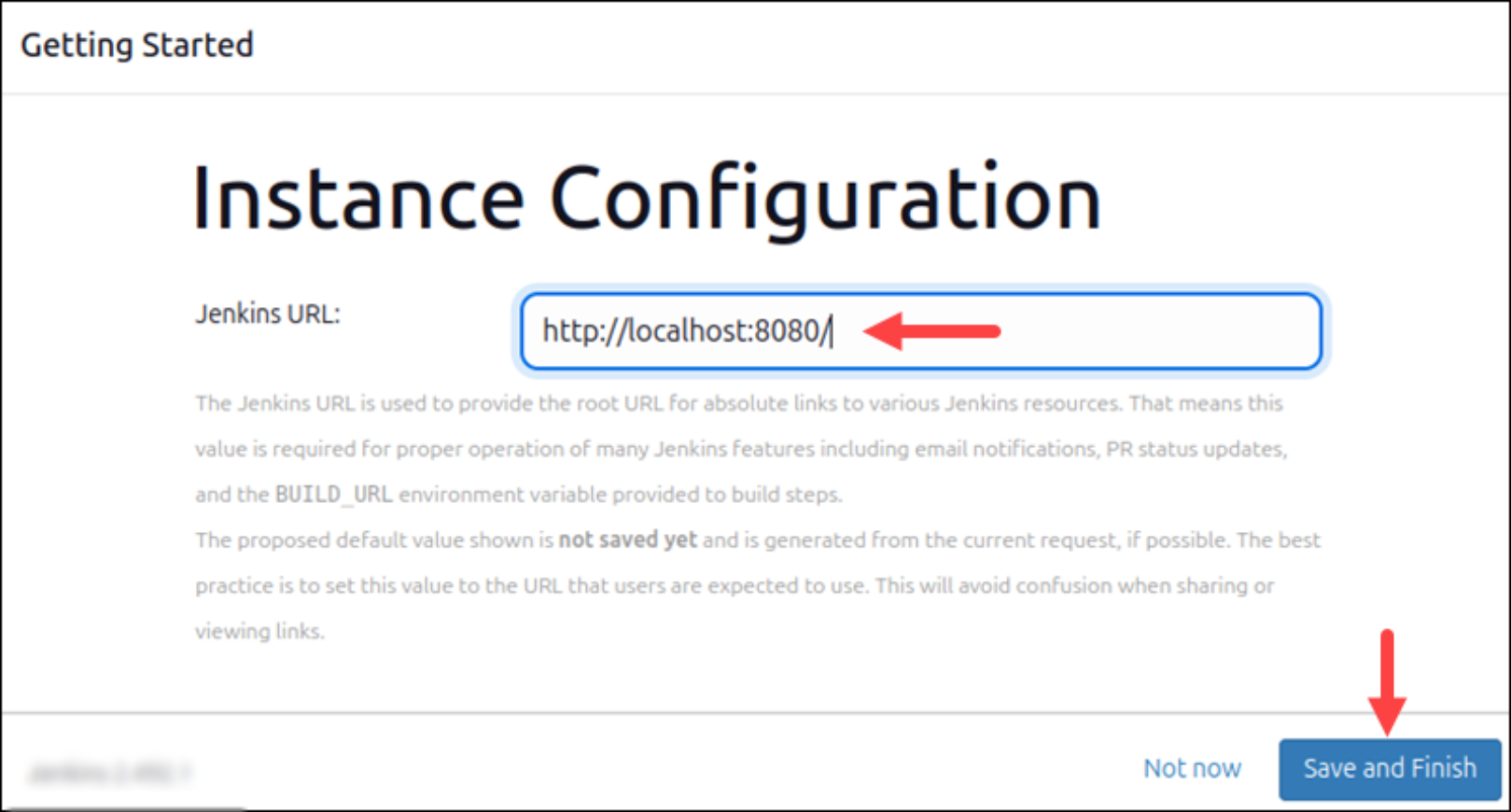
Once you specify the Jenkins URL, click Save and Finish.
Step 6: Test Jenkins Installation
After you complete the instance configuration step, you should see a page that says Jenkins is ready! Click Start using Jenkins to complete the configuration.
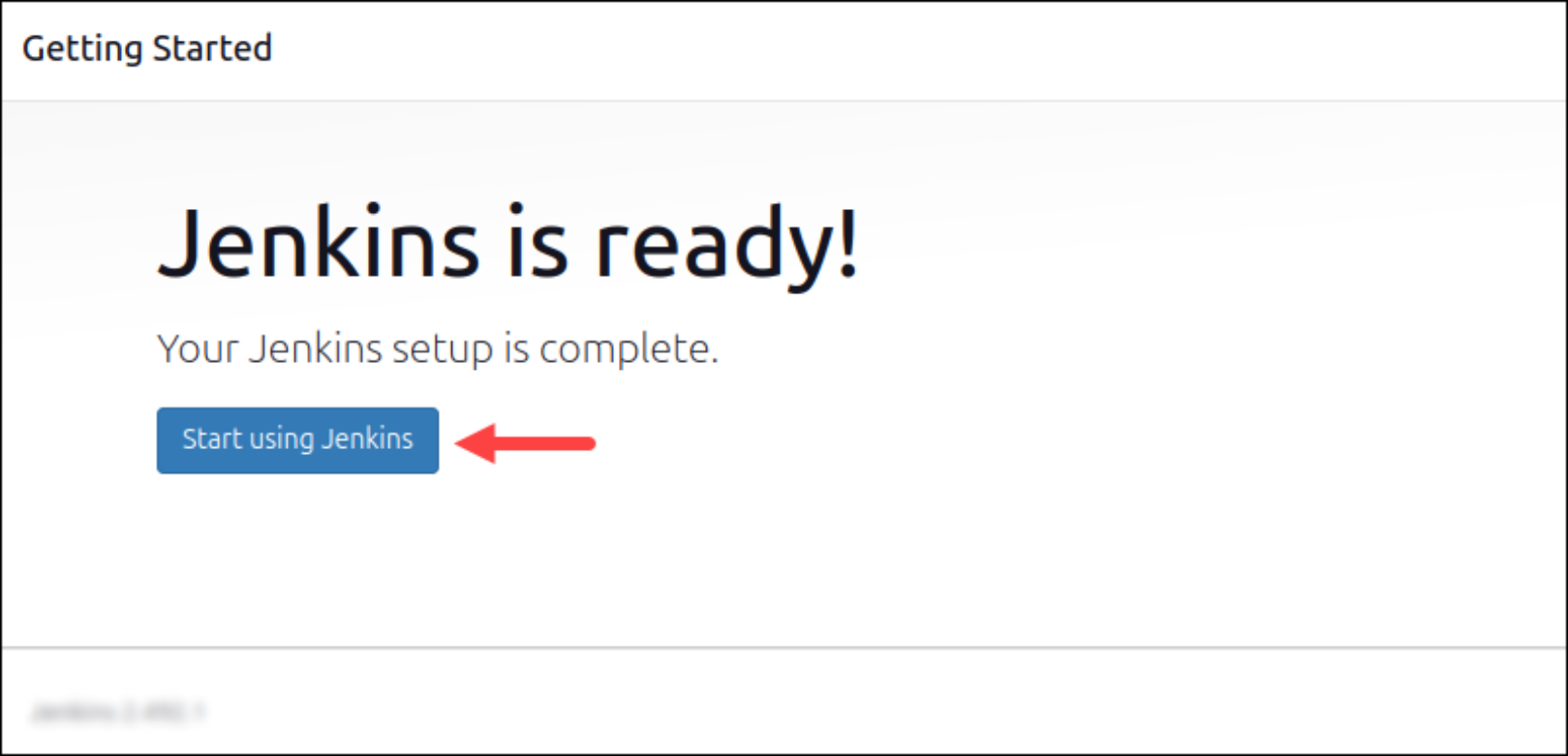
Click Start using Jenkins to visit the main Jenkins dashboard:
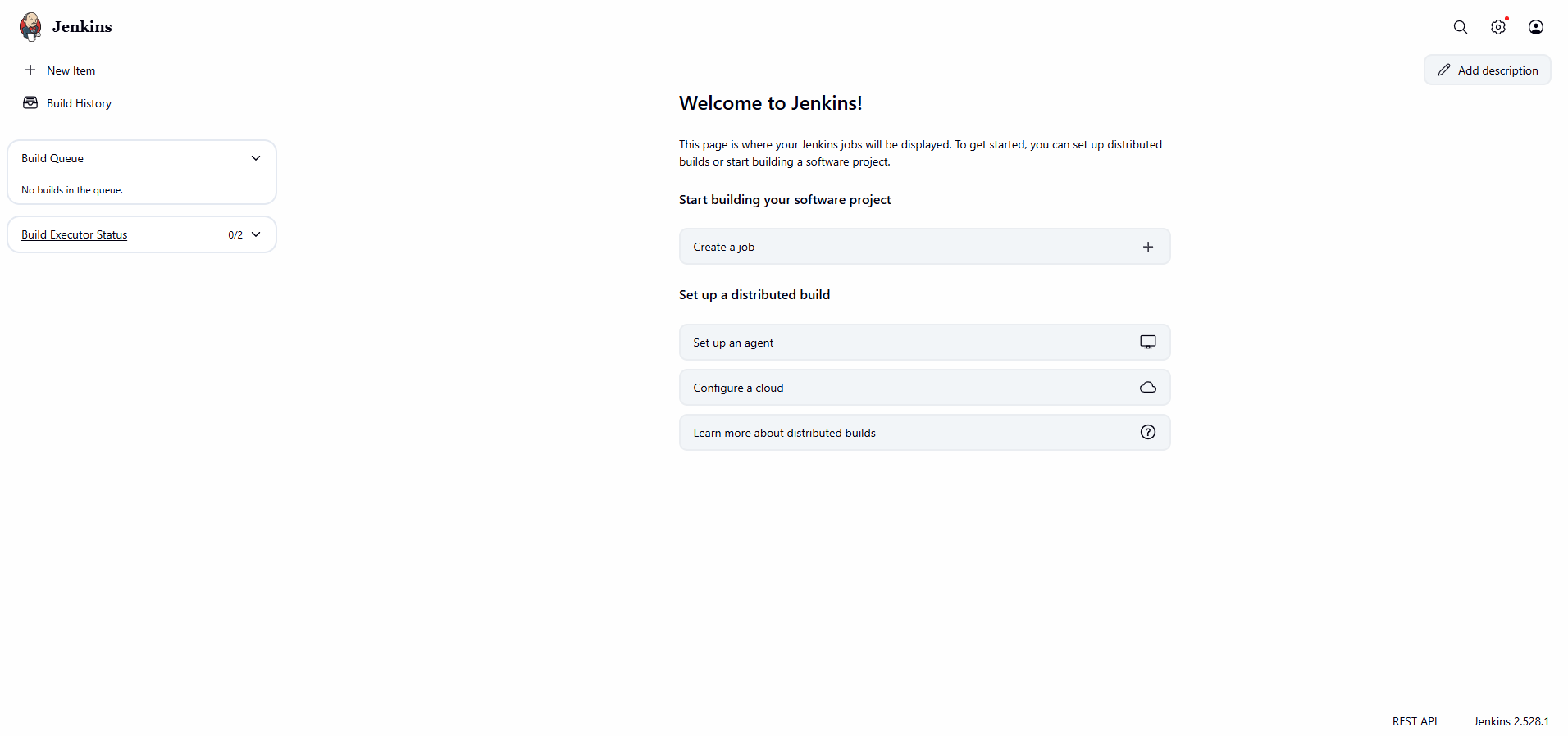
At this point, you have completed a successful installation of Jenkins.
Install Aqua Security Scanner Jenkins Plugin
Go to Manage Jenkins > Plugins > Available Plugins > Search Aqua Security Scanner and Install it
 Configure Plugin
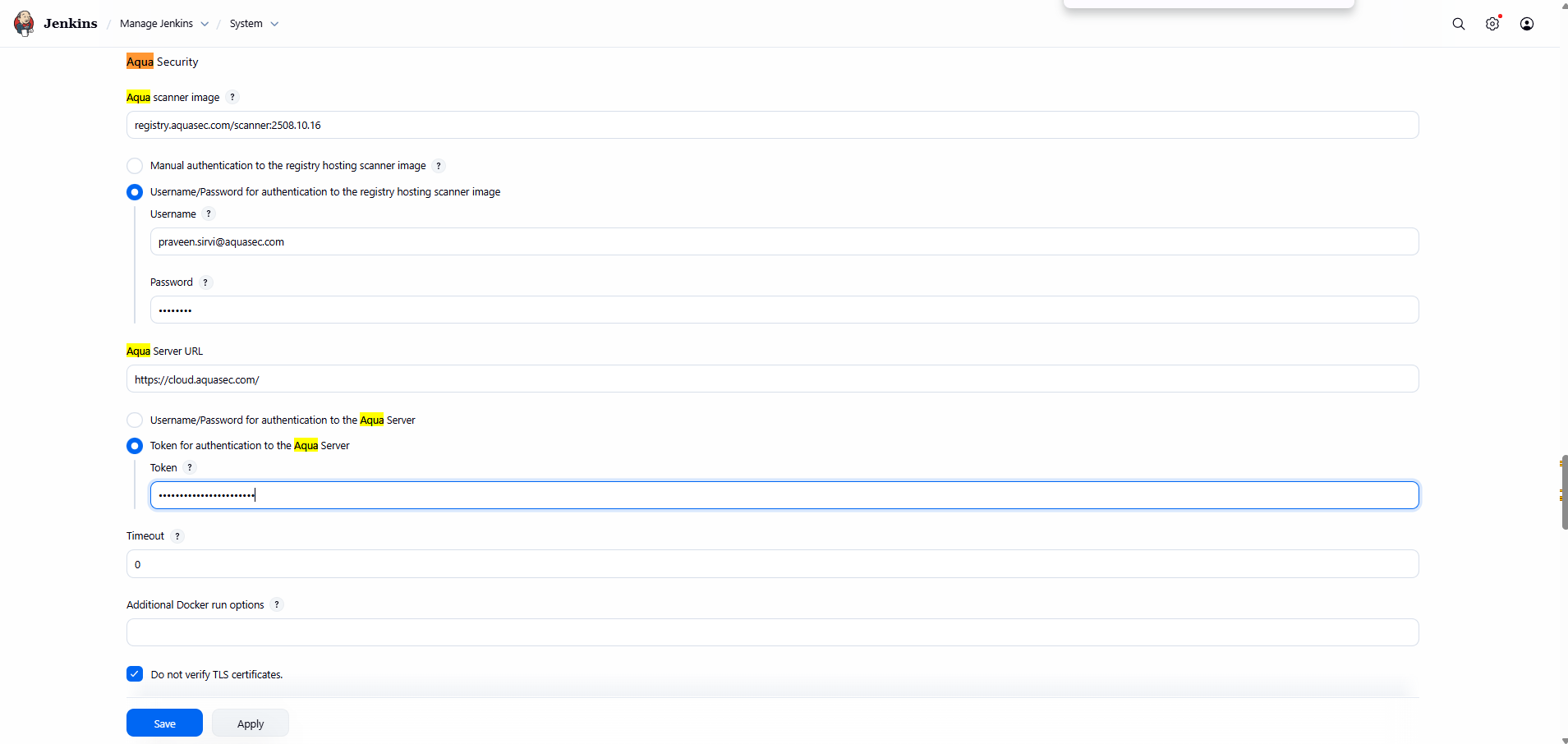
Go to Manage Jenkins > System > Go to Aqua Security
1. Aqua Scanner image - use scanner image as per env (on-prem or SaaS)
2. Username/Password for authentication to the registry hosting scanner image - enter username/password of registry where scanner is present
3. Aqua Server URL - Use console URL based on your env (on-prem or SaaS)
4. Authentication with server -
1. if env is on-prem, use Username/Password for authentication to the Aqua Server
2. If env is SaaS, Use scanner token
5. Do not verify TLS certificate - check if want to Skip/Ignore TLS verification
Configure scan job
Go to Jenkins home page > New job > enter job name > select job type as pipeline > create

Configure the pipeline to scan image and see the scan report
Select the Job > configure > Pipeline > Select pipeline Definition source > add a pipeline with a stage
Here we use pipeline script to integrate scan stage to the pipeline
Generate the aqua scan stage using pipeline syntax Snippet Generator.
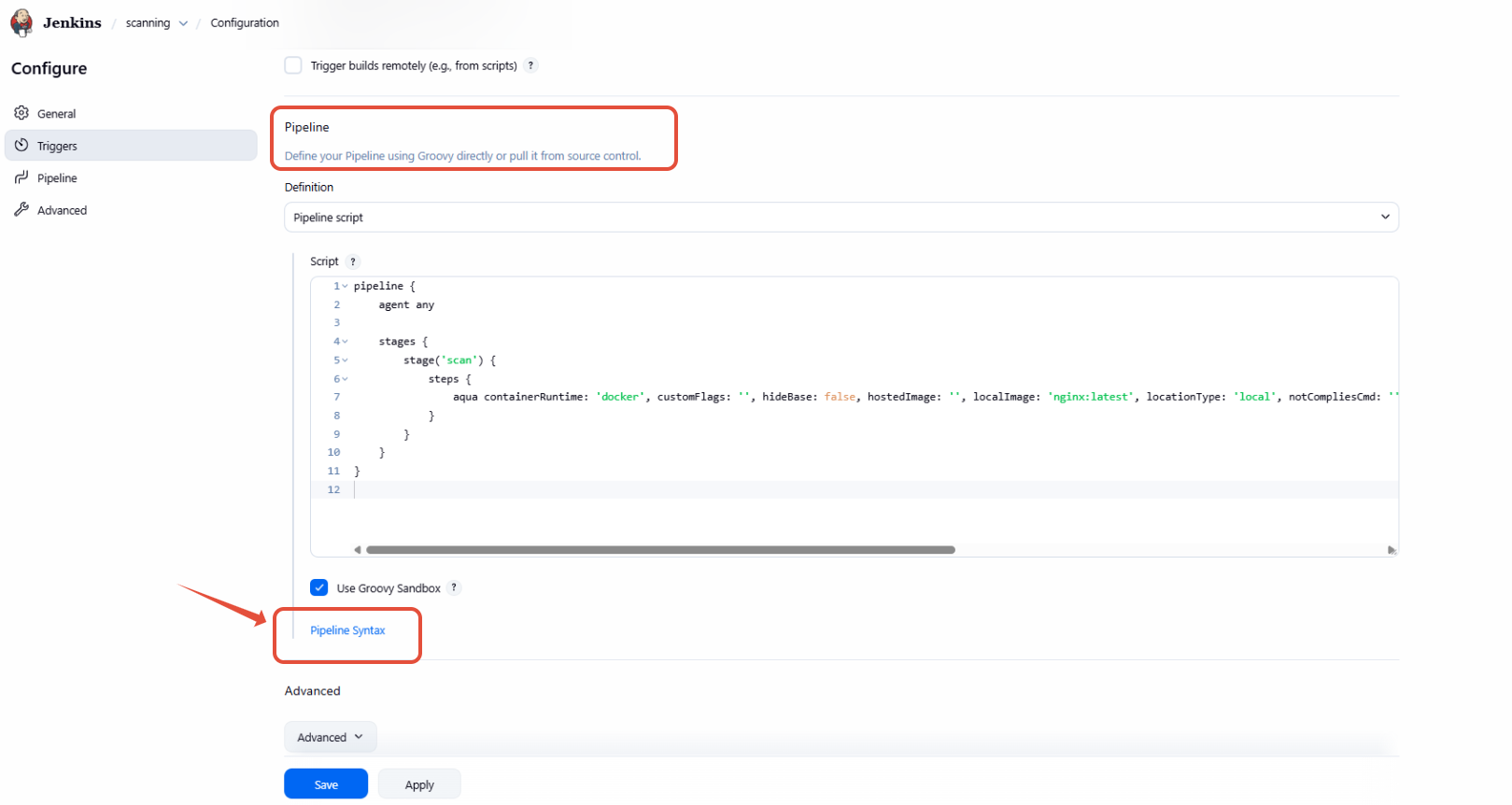
Example pipeline script:
pipeline {
    agent any
    options{
        ansiColor('xterm')
    }
    stages {
        stage('scan') {
            steps {
                aqua containerRuntime: 'docker', customFlags: '', hideBase: false, hostedImage: '', localImage: 'nginx', locationType: 'local', notCompliesCmd: '', onDisallowed: 'fail', policies: '', register: false, registry: '', scannerPath: '', showNegligible: true, tarFilePath: ''
            }
        }
    }
}
Enter the details based on image location and other flag if you want to use them.

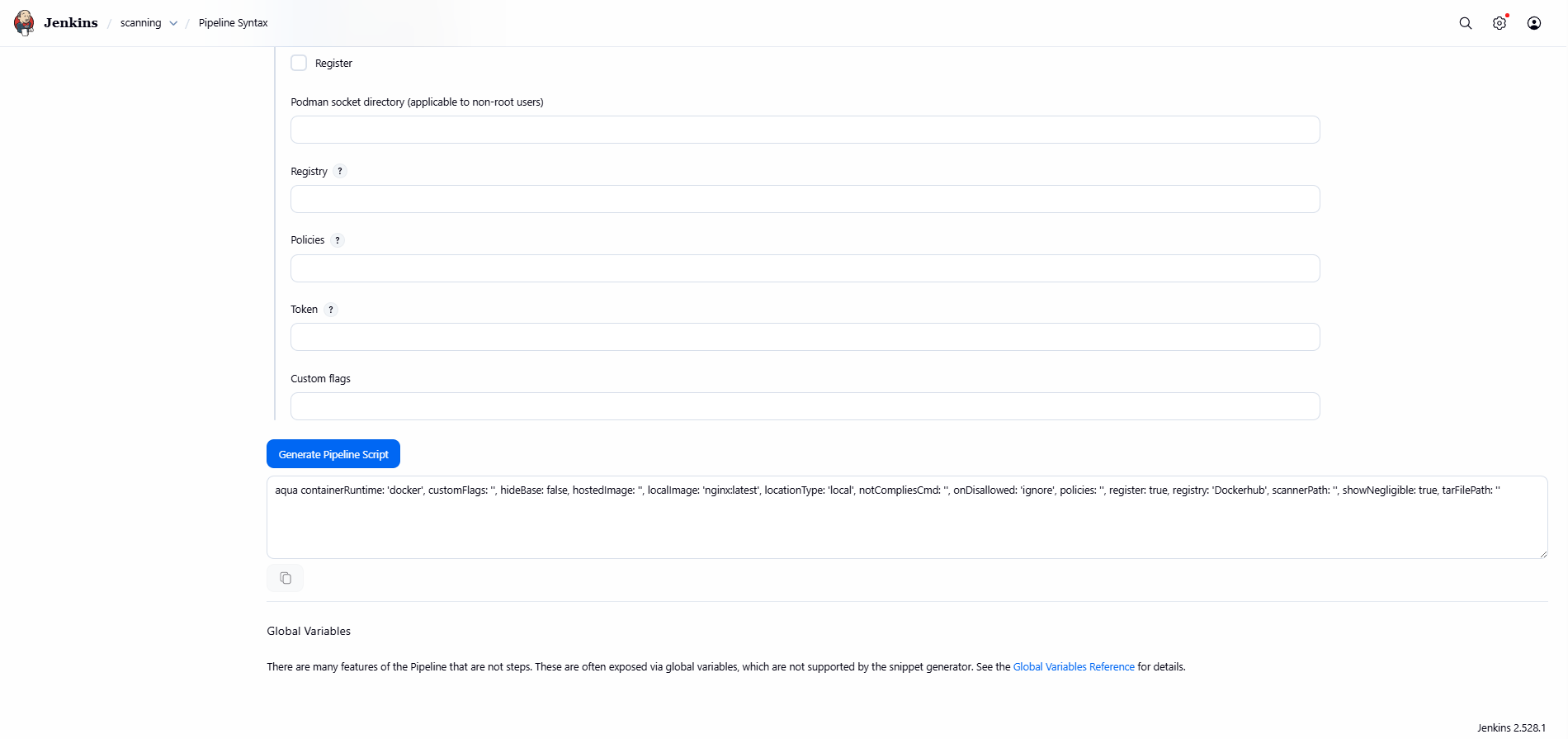
| Field | Description |
|---|---|
| When an image does not comply with Aqua Image Assurance Policies: |
|
| Image to scan: | Select one of the following options: |
| Hide base image vulnerabilities | Select this checkbox to prevent showing vulnerabilities found in the base image used by the image |
| Show negligible vulnerabilities | select this checkbox to show vulnerabilities with severity 'negligible' |
| Register | Select the Register checkbox to register the image with the Aqua Server after it is scanned. You can select this option if you have selected local in the Scan type field |
| Registry | Specify the registry name where you want image to be register ( Name of the registry that is already integrated with Aqua ) |
| Policies | Apply the list of image assurance policies to the image. You can enter multiple policies separated by commas. |
| Token | This token overrides the global token or Username/Password authentication configured in plugin configuration. The token entered here applies to this pipeline job, allowing different tokens for different builds. |
| Custom flags | Add additional command-line flags in this field. '--severity high,critical --jsonfile aqua-report.json --no-verify' etc |
Click on Generate Pipeline script and paste into scan stage and save it.

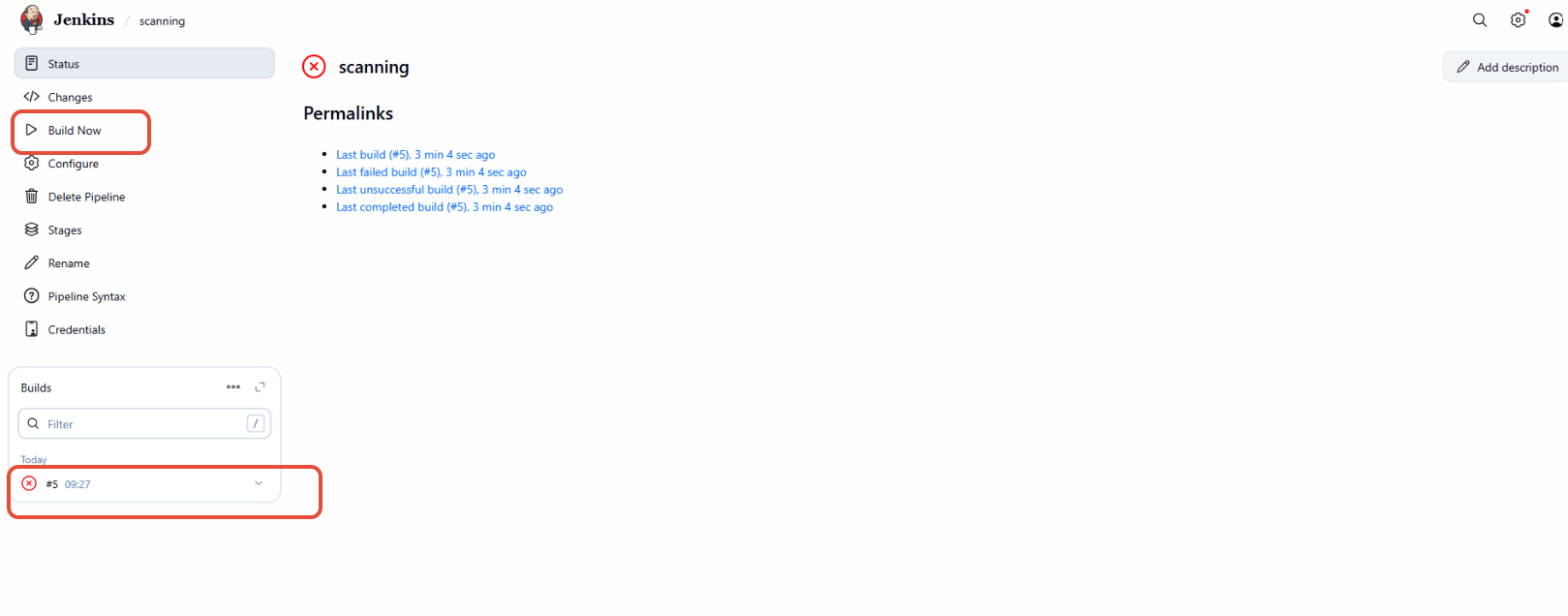
After this, click on build now. This will start scanning of image.
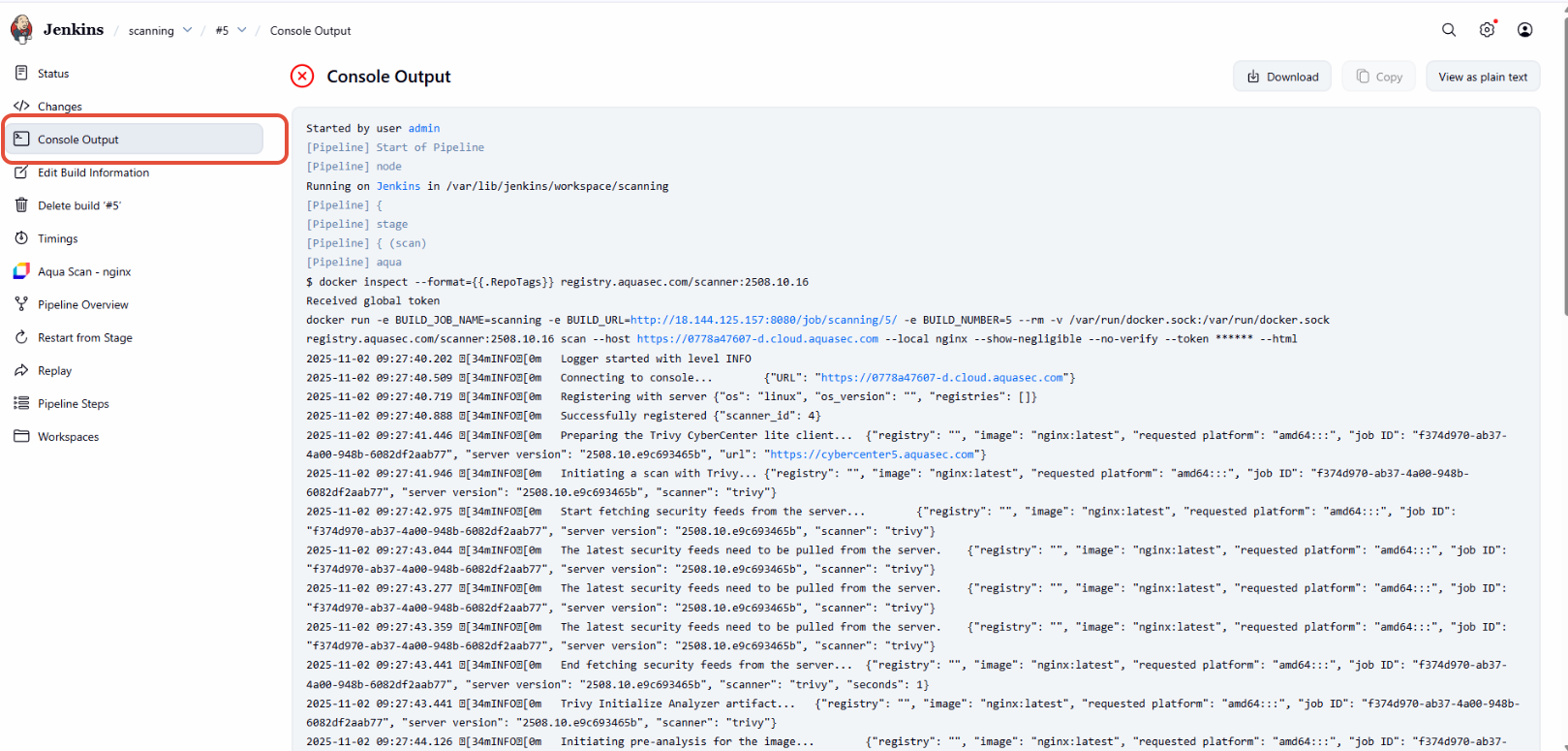
To check the logs, click on build > Console output
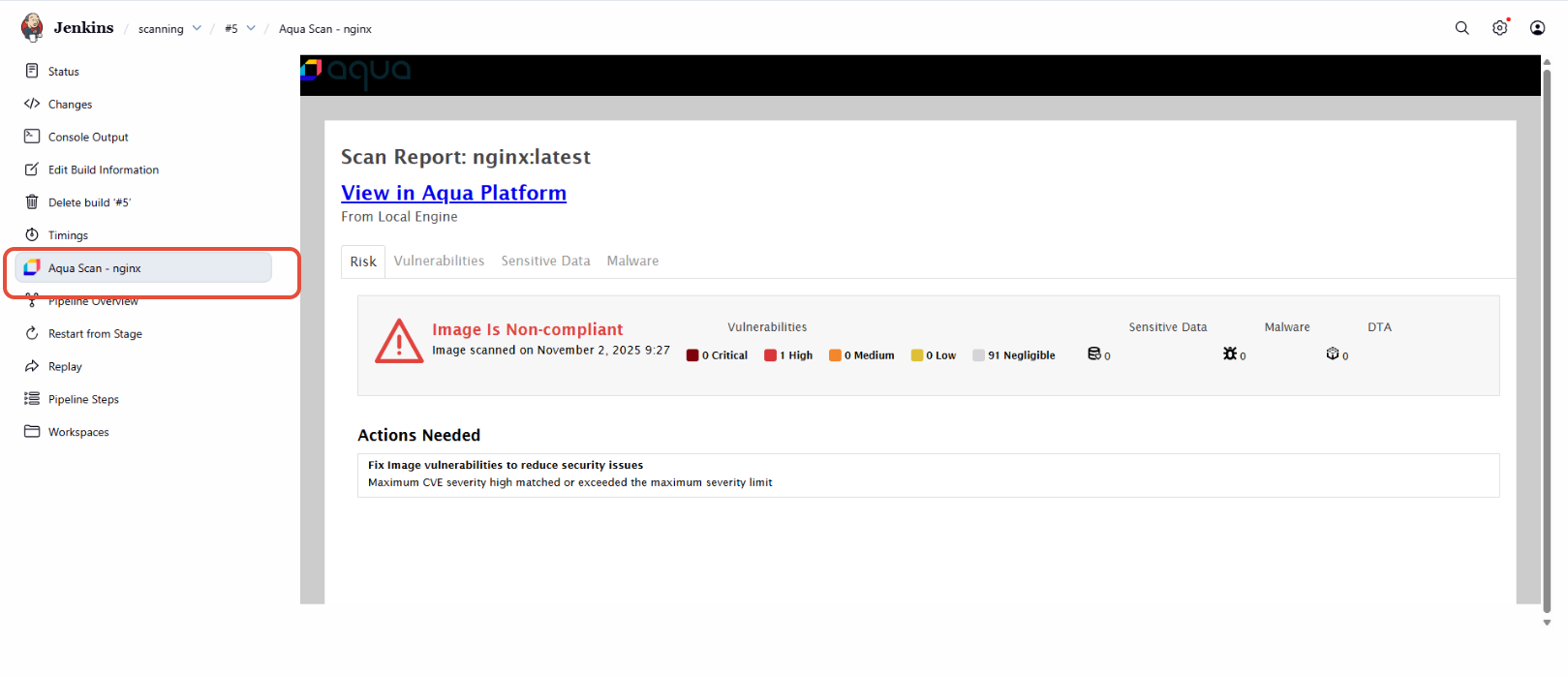
To see the scan report, click on
How to Run Scanner DEBUG mode
Sometime image scan fails due to some reason and we do not get much information in info logs then we need to enabled debug mode for more logs.
Go to Manage Jenkins > System > Aqua Plugin > Additional Docker run options . Here add -e SCALOCK_LOG_LEVEL=DEBUG like below
How to add proxy variables
Go to Manage Jenkins > System > Aqua Plugin > Additional Docker run options
& add below env's
-e http_proxy=http://proxy.us-east-1.app.test.org:8080 -e https_proxy=http://proxy.us-east-1.app.test.org:8080 -e no_proxy=<>
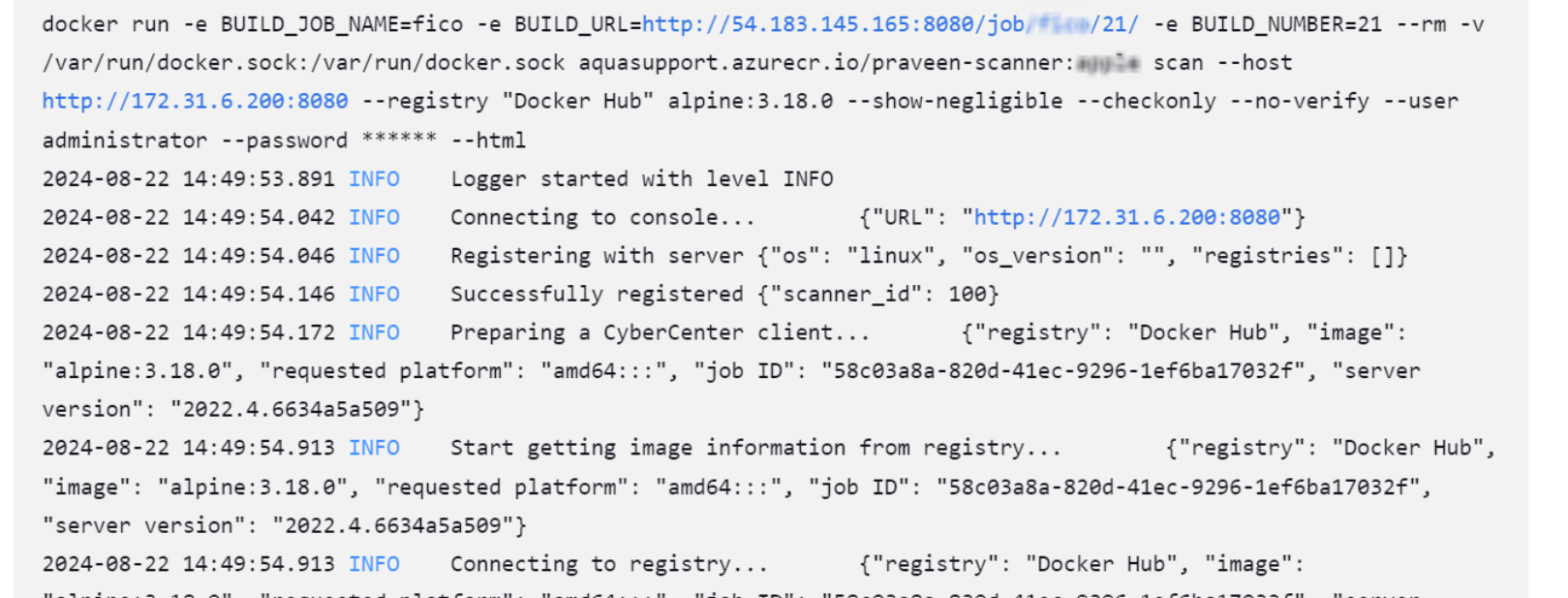
How to remove ASCII characters in build logs for Jenkins pipeline
need to install AnsiColor jenkins plugin https://plugins.jenkins.io/ansicolor/
Conclusion
By following this guide, you’ve successfully set up Jenkins with the Aqua Security Scanner plugin, configured key parameters such as proxy settings, and enabled debug mode for deeper visibility into scan operations. This setup ensures your CI/CD pipeline is equipped with robust image scanning and compliance checks directly within Jenkins, helping you shift security left and detect vulnerabilities early in the development lifecycle.
For advanced use cases or troubleshooting, refer to Aqua’s official documentation or enable debug logging to gain further insights into plugin behavior and scan outcomes.
Did you find it helpful? Yes No
Send feedback