CSPM Plugins | Ensure No Guest User & Azure AD App Organizational Directory Access
TABLE OF CONTENTS
1. Overview
Some CSPM plugins require specific Microsoft Graph API permissions to function correctly. These permissions must be granted to the Azure AD App used for Aqua CSPM scanning, as they enable the application to query Azure AD resources such as users and applications. This article outlines the necessary steps to ensure the proper permissions are configured for the following plugins:
Azure AD App Organizational Directory Access (
applications:list)Ensure No Guest User (
users:list)
2. Required Permissions
The following Microsoft Graph API permissions are required:
- Applications.Read.All (for Azure AD App Organizational Directory Access plugin)
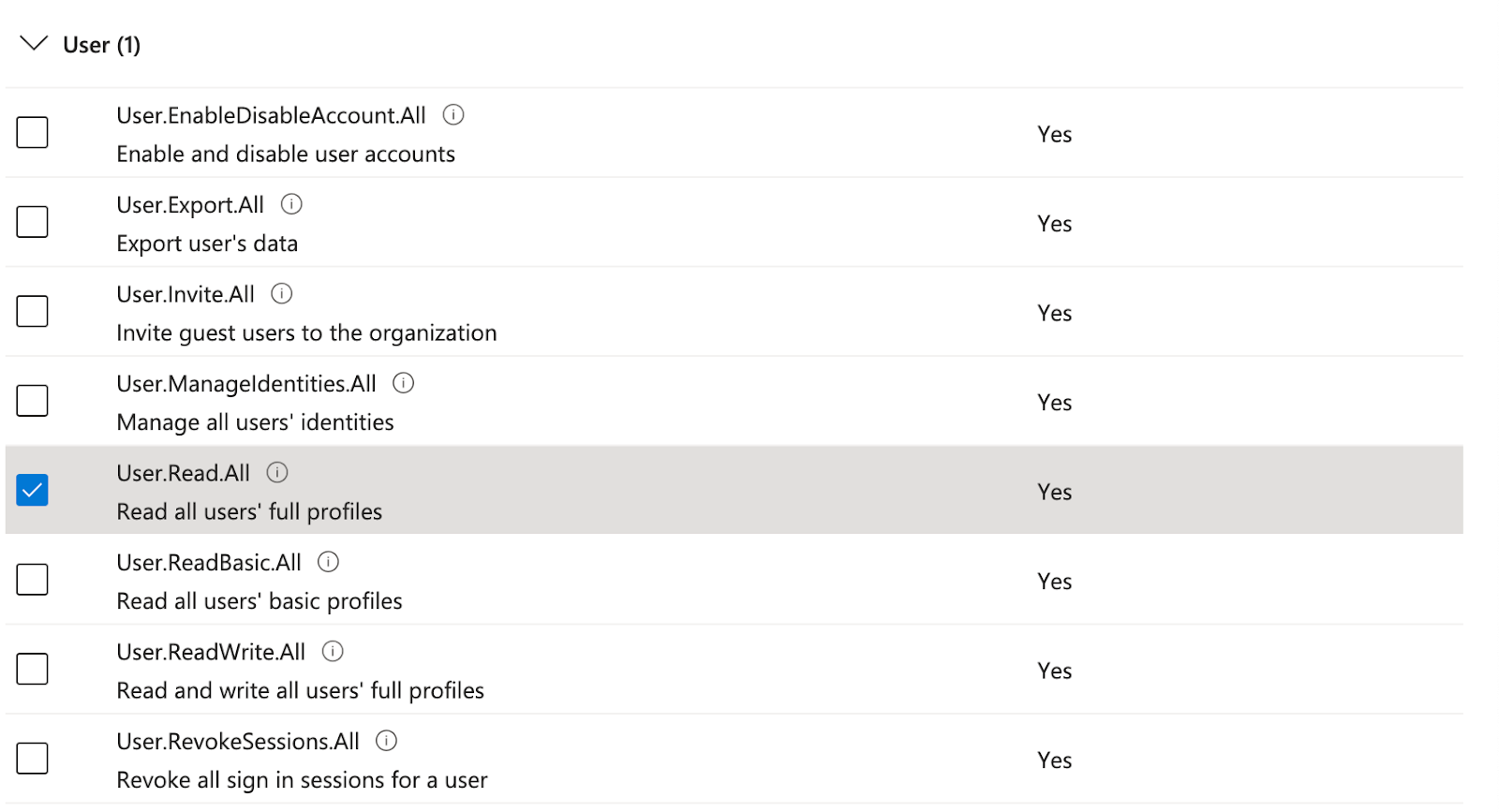
- Users.Read.All (for Ensure No Guest User plugin)
3. Step-by-Step Configuration Guide
1. Login to the Azure Management Console.
2. Navigate to 'App Registrations'.
3. Search for the application used for the Aqua CSPM connection (typically named 'aqua-cspm-scanner-subid').
4. Under the 'Manage' section, click on 'API permissions'.
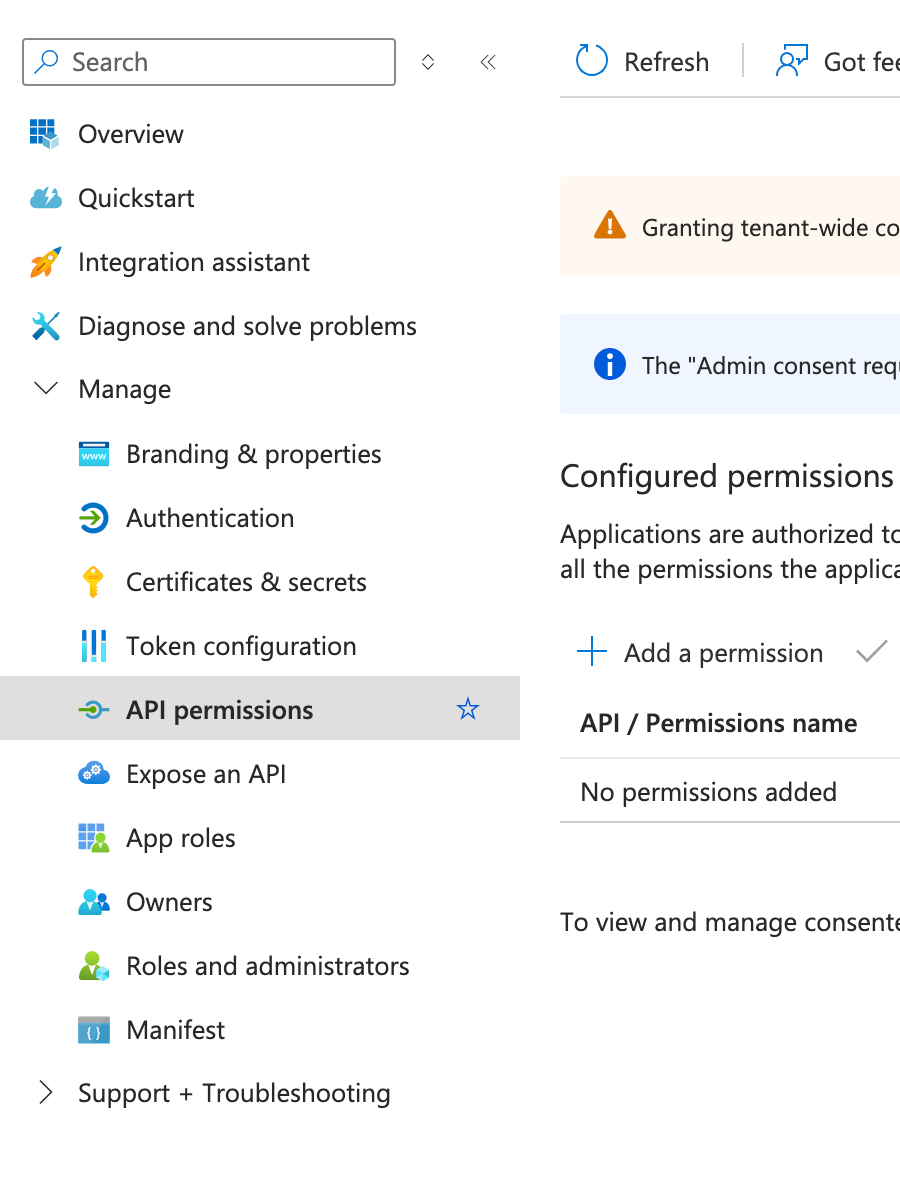
5. Click 'Add a permission' to open the side navigation panel.
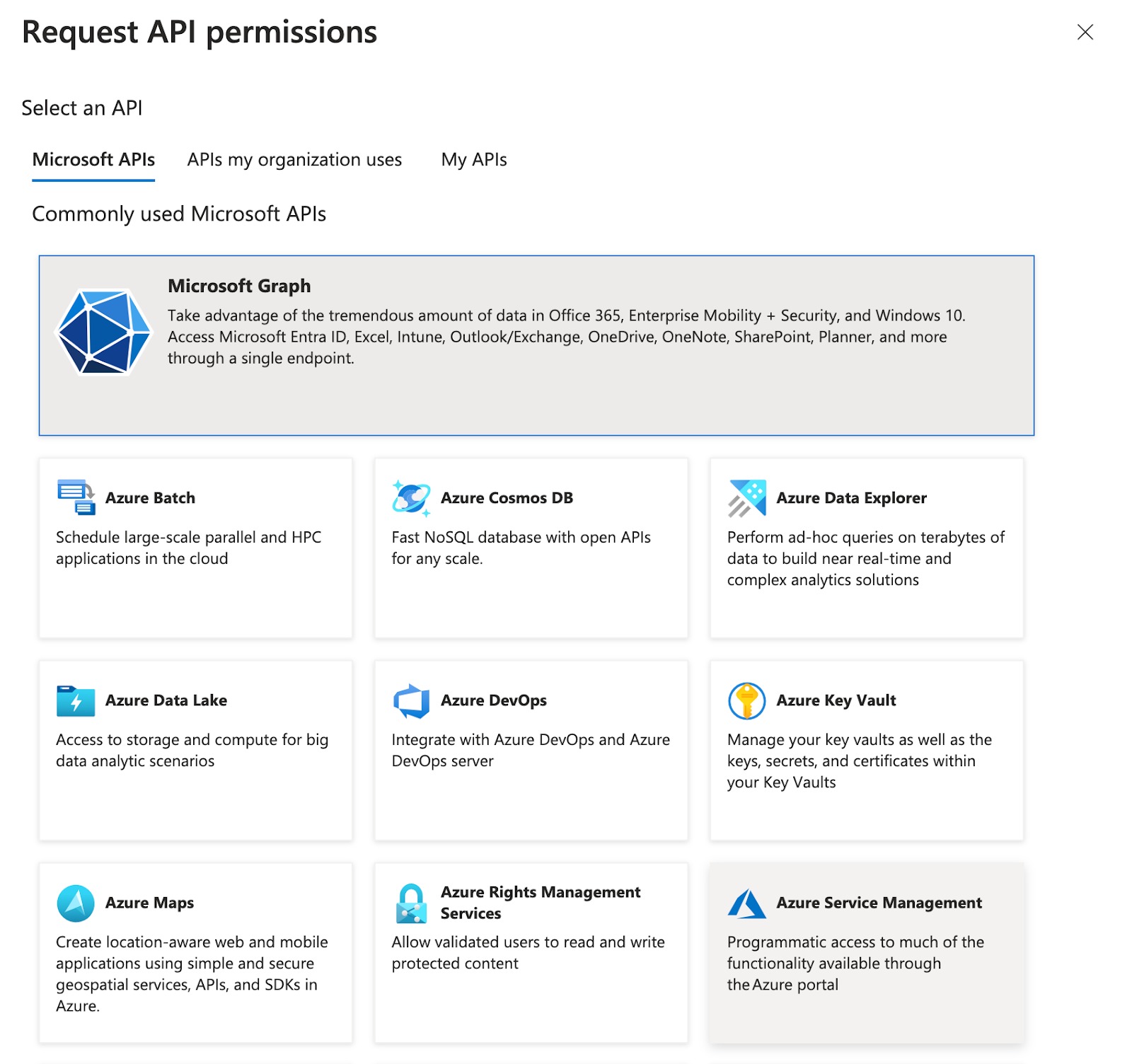
6. Select 'Microsoft Graph', then choose 'Application permissions'.
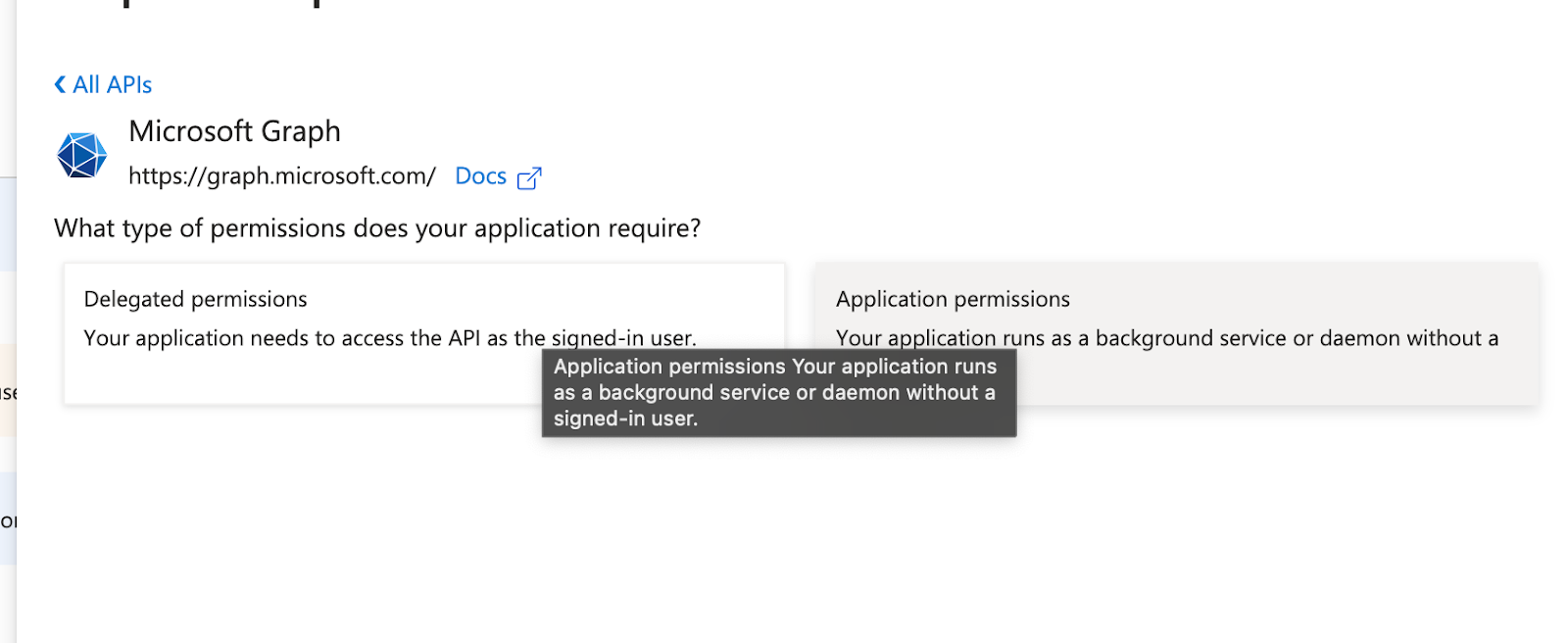
7. Locate and add the following permissions:
- Applications.Read.All
- Users.Read.All

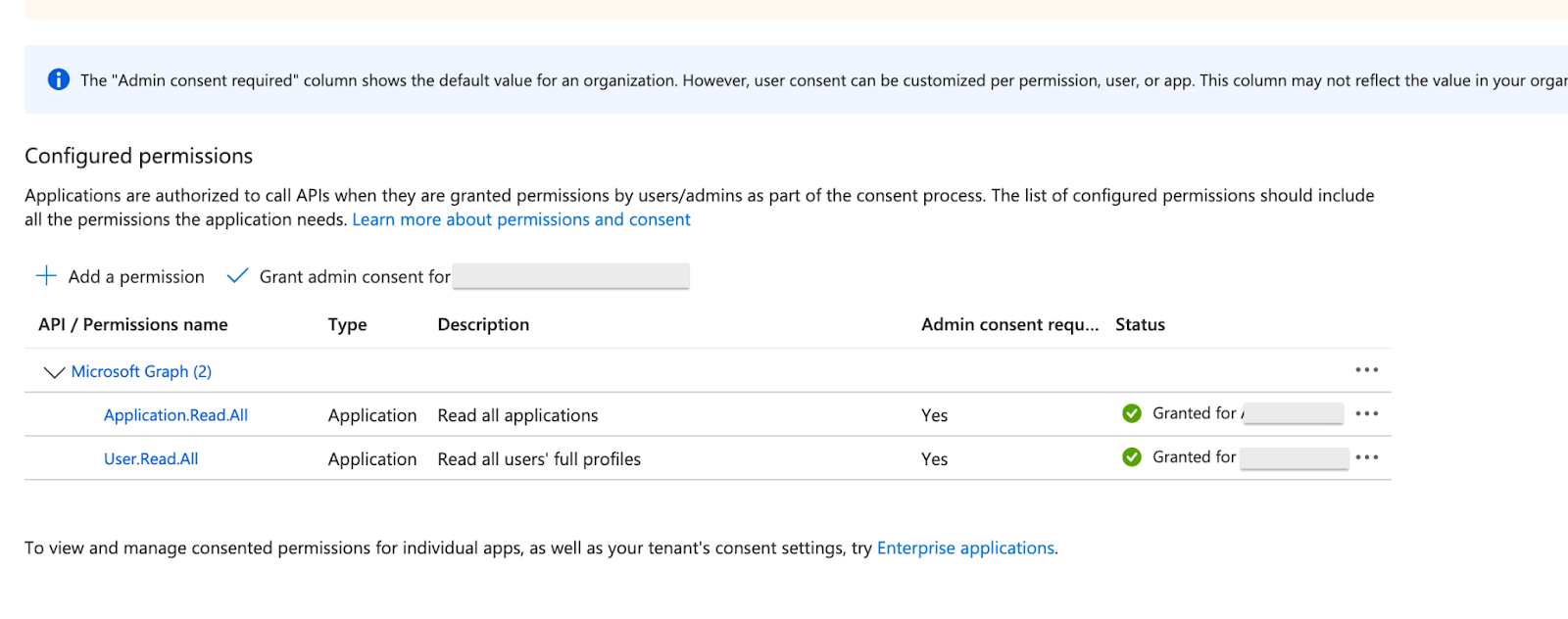
8. After adding, go back to the API permissions page and click 'Grant admin consent' for each permission.
9. Once completed, verify that the permissions are listed and granted as expected.
Did you find it helpful? Yes No
Send feedback